CSS Troubleshooting
So, you think the CSS on a page is causing problems for the Player? Well, there’s a strong possibility you’re entirely correct, but now you’re not sure what to do next. You’re in luck my fellow champ, because this is the 101 guide for you. We’ll go through some steps for getting to the bottom of this CSS conundrum.
If you’re looking to test out your skillz, you should try them out in the Aardvark Garden’s CSS Troubleshooting Playground.
Preliminary Steps
Have you seen the page and replicated it?
This may be the simplest step, but it’s pretty important. Customers can send you screenshots until Jordan likes Aardvarks, but it’s a tricky matter verifying them if you don’t have access to the page. If possible, see if they can give you a link to the page so that you can replicate it and test it yourself.
If you can’t replicate it, there’s a possibility that the viewer has an extension/plugin that’s causing the problem. See if pursuing the normal troubleshooting steps of an incognito window, another browser/device, or different page (like a Wistia Media Page) work properly. This will give you a better idea of how focused the problem is. If we’re not able to replicate it, we’re probably troubleshooting a different issue.
What type of Embed is it?
This may also seem simple, but it’s pretty useful. It’s almost certainly a standard embed because iframes are a great way to avoid CSS conflicts. If it’s an iframe, something funky’s going on. Something to look at here is whether it’s a standard Standard/Popover embed or if they’re doing something different.
If they are using a custom embed, does swapping out their embed for standard one solve the problem. If it does, maybe there’s a weird class/id on it that’s causing the problem. You should check whether there’s a weird class/id on it no matter what.
Digging into the issue
Pinpoint the exact issue
Is the problem a turnstile? Or maybe all the buttons are out of whack on the playbar? Even weirder, maybe it only happens sometimes and does different things at different sizes…
This step is key because we want to know exactly what the problem is. Sometimes the viewer has done our work for us here, but other times the problem might just be listed as “The player looks weird on my site, can you advise on a fix?” It’s a lot harder to fix if we don’t know what we’re solving for.
Inspect that element
There is a very useful keyboard shortcut you should commit to memory. Control + Option and clicking. When you do this, it will avoid triggering clicks/JS, so it will allow you to click on the player and pull up a right click menu. You can then inspect that element from that menu.
That shortcut is really useful here because it will let us jump straight to an affected element. For our example here, let’s imagine that the turnstile fields are all out of alignment. If you use that shortcut when you click on one of those fields, you can inspect the exact text field in the inspector. Do that and you’ll get something that looks sort of like this:
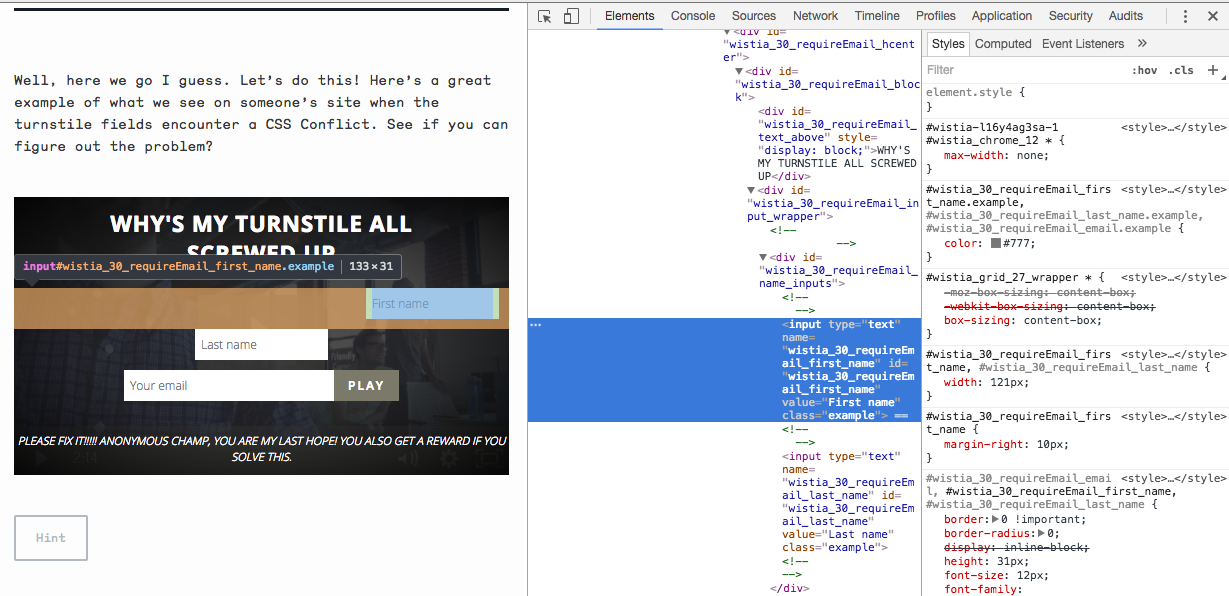
Where are the non-Wistia styles
Now that we’ve opened up the inspector for the particular element, we can look at the styles being applied to it (it’s that window on the far right in the image above). This is really the treasure hunt part of our adventure. You’ll want to find the style and turn it off to see if that solves the problem (the checkbox in that menu). Here are some key points to keep in mind for this step:
- We’re almost certainly looking for styles that are not labeled Wistia (or that don’t follow the Wistia naming conventions for our elements)
- Are there large overarching styles applied to all elements like divs or text-inputs. This is frequently the issue. In those cases, it’s frequently setting the display to block.
- Are there any styles that say
!important. They may be important to someone, but it’s not a good way of doing things. (It’s the equivalent of finding out that your square peg doesn’t fit in the round hole, then deciding that you should attach the square peg to a pile driver helmed by someone named Bubba. Bubba’s gonna get the job done, he’s really good at it, but it’s probably going to cause some problems for your square peg in the process.) - Are you inspecting the right element? Frequently, the method described above will get the right element, but sometimes CSS is tricky. You may need to go to a parent element to find the problem.
- Sometimes the problem is caused by a container. You may need to see if removing the embed from that parent container to see if it does the trick. Fun fact: you can drag the embed out of the parent container in the inspector.
- You can use the arrow keys to move to the top most highlighted element. This is useful because it can help find the problem at it’s roots, you don’t always want the exact thing you’ve clicked to inspect.
None of that worked, what now?
Sometimes it’s caused by scripts on the page. This is a lot more rare. A great way to test for this is to use the Embed Doctor and copy the page. You can then systematically try removing scripts from the <head> of the page to see if that solves the problem. If removing scripts solves the problem, you can slowly add them back in to determine the issue. This once caught us with an old version of mobile jquery.
Next steps
I solved the issue
Nice work! There’s a useful CSS Conflict macro you can use. It’s really nice to be able to send what you’ve discovered to the viewer because they will likely need to adjust something on their site to solve the problem.
I’m still stuck
Fear not! You can always escalate or ask for help. Some champs, many of the ursine variety, really enjoy solving CSS conflicts. It may be something really weird that we haven’t seen before. If it is, you should definitely take notes so that we can add it to the CSS playground.
I was just reading this over because I like learning
Well, isn’t that awesome, you’re greatest. You probably are interested in continuing to learn then? Great answer, why don’t you try your new skillz in the CSS playground over the Aardvark Garden: https://wistia.github.io/aardvarkgarden/csstroubleshooting/. We try to keep track of all the common and weird conflicts we’ve found.